Open Today Sales: 8:30 AM-8 PMOpen Today Service & Parts: 7 AM-7 PM



222 San Bruno Ave E, San Bruno, CA 94066
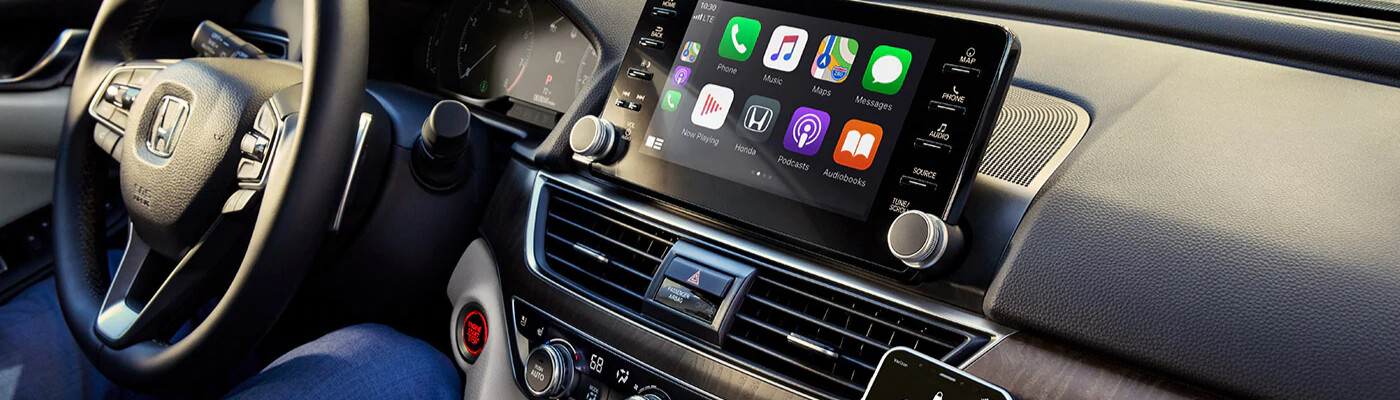
One of the best things about a new Toyota vehicle is the ability to have the latest and greatest smartphone connectivity technology available. Smartphone connectivity such as Apple CarPlay® and Android Auto™ are some of the most requested features around San Francisco. So, it’s important to know how to connect Apple CarPlay® and Android Auto™, learn how to connect Android Auto™ wireless and Apple CarPlay® with Victory Toyota of San Bruno. For more information, feel free to contact us anytime!
Learning how to connect Apple CarPlay® is quick and easy, however, you must have at least an iPhone 5 to be compatible with CarPlay. If you’ve gotten the iPhone 5 or above, you’re good to go! So, let’s learn how to connect Apple CarPlay®. First, you have to navigate to “settings”, “Siri & Search”, and activate Siri. Then, let’s follow the steps below:
Figuring out how to use Android Auto™ wireless is quite easy. Let’s take a closer look at how to use Android Auto without USB below. You should first make sure that your Android phone has Android 5.0, Android 6.0, or above to be compatible with Android Auto™ wireless:
Now that you know how to connect Apple CarPlay® and how to use Android Auto™ wireless, come see the friendly team at Victory Toyota of San Bruno to check out our new vehicle inventory and meet with our finance center to start the buying process! Be sure to use our new vehicle specials to save big near Burlingame!
Your vehicle’s brake system is one of its most important safety features. Whether you’re commuting to work, taking a road trip, or running errands around town, reliable brakes help keep you, your passengers, and everyone else on the road safe. While brake components are built to last, they do wear down over time. Recognizing the…
Buying a new vehicle in the next few years could come with an additional tax benefit. Under a provision of the One Big Beautiful Bill Act, eligible taxpayers may be able to deduct up to $10,000 in qualifying vehicle loan interest each year for tax years 2025 through 2028. Unlike many tax deductions that require…
September is National Preparedness Month, making it the perfect time to think beyond routine vehicle maintenance and prepare for the unexpected. Whether you’re commuting to work, taking the kids to school, or heading out on a road trip, having a well-stocked emergency kit in your vehicle can make a big difference if you encounter a…